
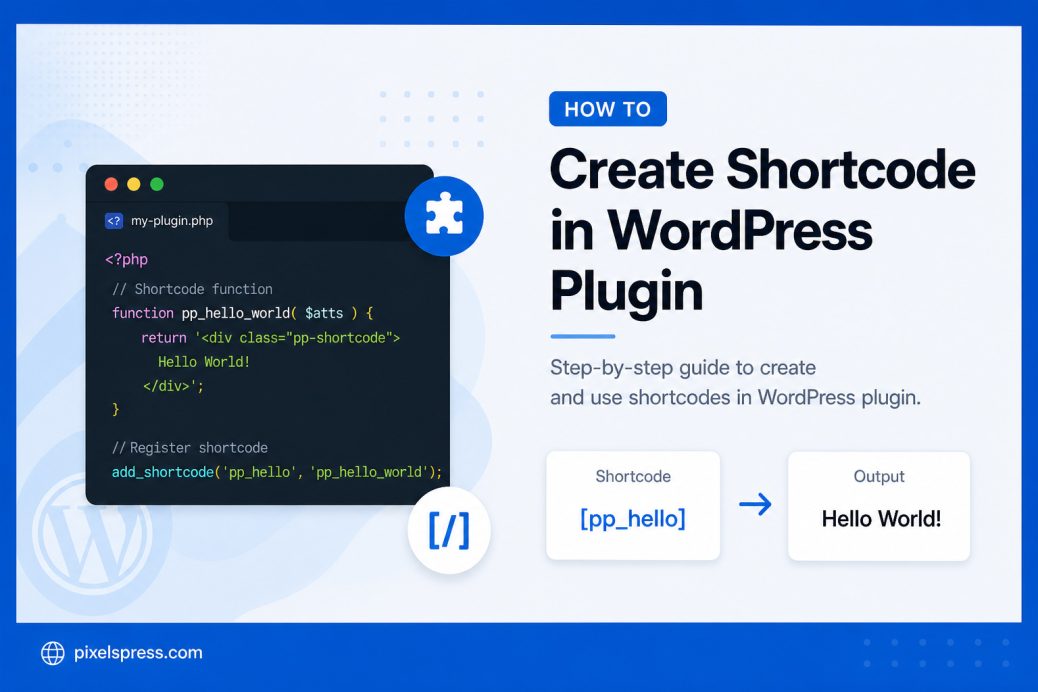
WordPress shortcodes act as helpful macros for your website. They let you easily add dynamic content to your posts and pages. For example, you can use a shortcode to insert a custom product box directly into a blog post.
WordPress introduced this feature in version 2.5. Developers created shortcodes to keep user content clean and semantic. Today, users can add photo galleries or complex elements to widgets and pages without writing any code directly.
The add_shortcode Function
To create a custom shortcode, WordPress provides the add_shortcode() function. This built-in function requires two basic parameters to work correctly.
The first parameter is $tag. This string represents the exact shortcode name you will use in your post content. The second parameter is $callback. This callable function runs automatically whenever WordPress finds your specific shortcode tag.
add_shortcode( $tag, $callback_function );For this tutorial, we are using the standard WordPress Plugin Boilerplate. Let us create a shortcode that will display a simple product box. We will name our specific tag product_box.
Implementing Attributes for Dynamic Content
To make your shortcode professional, you should allow users to pass data through attributes. This lets you change the product name or price within the editor. We use the shortcode_atts() function to manage these values.
function display_product_box_shortcode( $atts ) {
    $pairs = array(
        'title' => 'Sample Product',
        'price' => '0.00'
    );

    $attributes = shortcode_atts( $pairs, $atts );

    return '<div class="product-box">' .
                '<h3>' . esc_html( $attributes['title'] ) . '</h3>' .
                '<p>Price: $' . esc_html( $attributes['price'] ) . '</p>' .
           '</div>';
}
add_shortcode( 'product_box', 'display_product_box_shortcode' );
How to Use Attributes in Your Post
Now that you have added attributes, you can customize every instance of the product box. Simply add the parameters inside the brackets in the WordPress editor.
[product_box title="New Camera" price="499"]This approach gives you total control over your plugin output. It allows your users to create unique layouts without ever touching your PHP files.
Why You Should Use Return Instead of Echo
One common mistake developers make is using echo inside the callback function. When you use echo, the content often appears at the very top of the page. It will not stay inside the post content area.
Always use return to pass your HTML string back to WordPress. This ensures the product box appears exactly where the user placed the shortcode. If you have a large amount of HTML, you can use Output Buffering to keep your code clean and organized.
Wrapping Up
Creating shortcodes is a fundamental skill for any WordPress plugin developer. It bridges the gap between complex backend logic and a simple user experience. By using the add_shortcode() function and attributes, you provide a powerful tool for your site editors.
Are you ready to start building more complex features? Try adding custom CSS classes to your product box to make it stand out on your site.